You have a spreadsheet with business-partner IDs and want to check the names against SAP. In Joule Work Desktop (JWD), you might ask:
Look up business partner 1000001 in SAP and compare its name with this spreadsheet. Include the source system and retrieval time, and leave SAP unchanged.
A custom MCP server for Joule Work Desktop can provide that tool. Your developers decide what it reads, whose permissions it uses, and how much work it sends to SAP.
I developed @arc-mcp/xsuaa-auth to make the authentication layer reusable. It connects MCP servers to SAP’s Authorization and Trust Management service, XSUAA, and provides helpers for destination-based connections with the signed-in user’s context.
The goal is a shared service with individual user access and centrally managed permissions, following the authentication part of SAP’s documented architecture for custom MCP servers on BTP. SAP is the main example; the same sign-in foundation can protect tools for other business applications.
What a custom MCP server adds to JWD
MCP, the Model Context Protocol, gives AI applications a common way to discover and call tools. In JWD, an MCP server appears as a connector that you select for a conversation. See SAP’s connector documentation.
Our example tool, get_business_partner_summary, takes one business-partner ID and retrieves the fields JWD needs for the comparison. Other tools could check delivery status, read orders, or query an internal service.
Start with a question your team already knows how to answer in SAP. Choose an appropriate API, define the expected result, and check whether the assistant explains it accurately.
Following SAP’s architecture for custom MCP servers
SAP documents Pattern 2: Custom MCP Server on SAP BTP for organizations building and operating their own server. Its guidance covers authentication, access control, backend API quotas, and reliable operation.
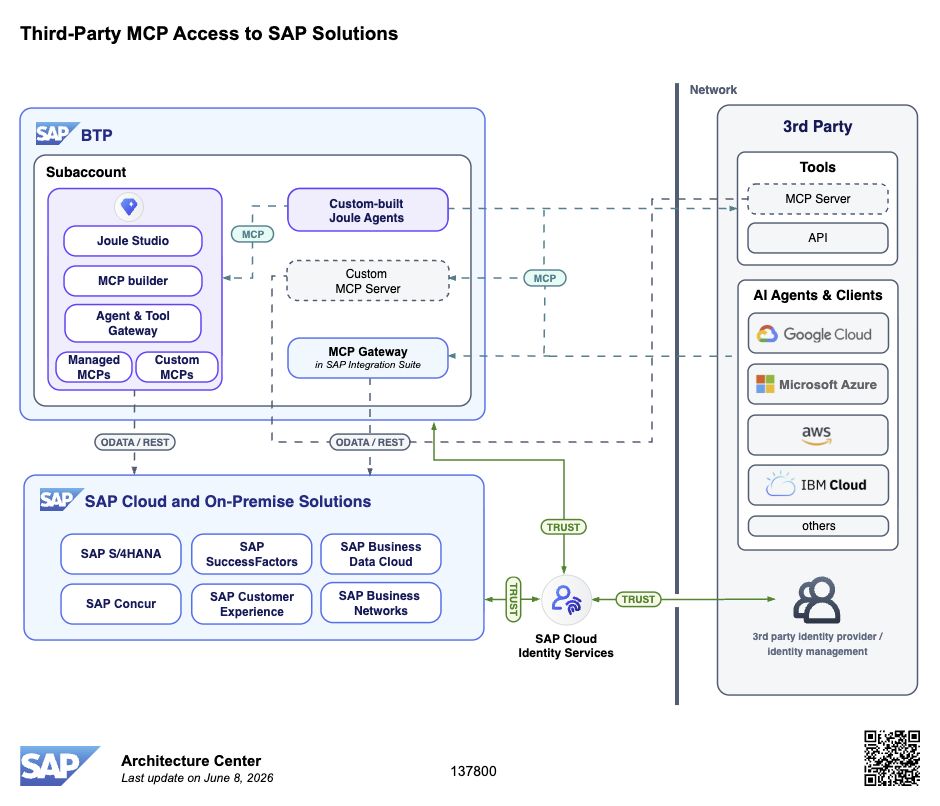
SAP’s reference architecture. The Custom MCP Server box inside BTP is the part this article builds on. Screenshot captured on 22 October 2026; diagram dated 8 June 2026. Source: SAP Architecture Center, © SAP SE or an SAP affiliate company and contributors (Apache 2.0).
xsuaa-auth supplies reusable authentication components for this architecture: XSUAA sign-in, token validation, and helpers for destination-based user propagation. Your team defines the business tools and their permissions.
The complete design also needs input validation, monitoring, and credential management. SAP calls for identifying the calling agent, retaining the human user’s context, and narrowing downstream credentials to the tool’s needs. User authentication alone does not establish all of those properties; the library does not certify a finished server.
For spreadsheet lookups, enforce per-user limits and a shared request budget aligned with the backend API’s quota. Count retries and traffic across server instances. Your application or infrastructure owns these controls.
SAP also describes MCP Gateway in Integration Suite for managed governance. With a custom deployment, your organization owns the controls and must verify API use against SAP’s API Policy.
What using the connector would feel like
Your IT team deploys a shared server. You select the connector provided by your organization, sign in with your own work account, and request information. Colleagues use the same endpoint with their own permissions.
The business-partner tool could return this small result:
| Field | Illustrative result |
|---|---|
| Business partner | 1000001 |
| Name | Demo Industrial Components |
| Category | Organization |
| Source | S4-DEMO |
| Retrieved | 21 October 2026, 12:00 UTC |
These values are synthetic. The response gives the assistant enough information for the comparison and a source you can check, without retrieving unrelated addresses, contacts, or bank details.
This tool only reads data. The server must enforce that boundary even when a prompt asks for changes. Write operations would need separate validation and permissions.
Limiting the response also limits what enters the conversation. SAP documents that JWD sends conversation context to AI models through SAP AI Core in its security and data privacy guide.
Your SAP permissions should travel with the request
The important part is whose access SAP checks. This diagram shows where the library fits:
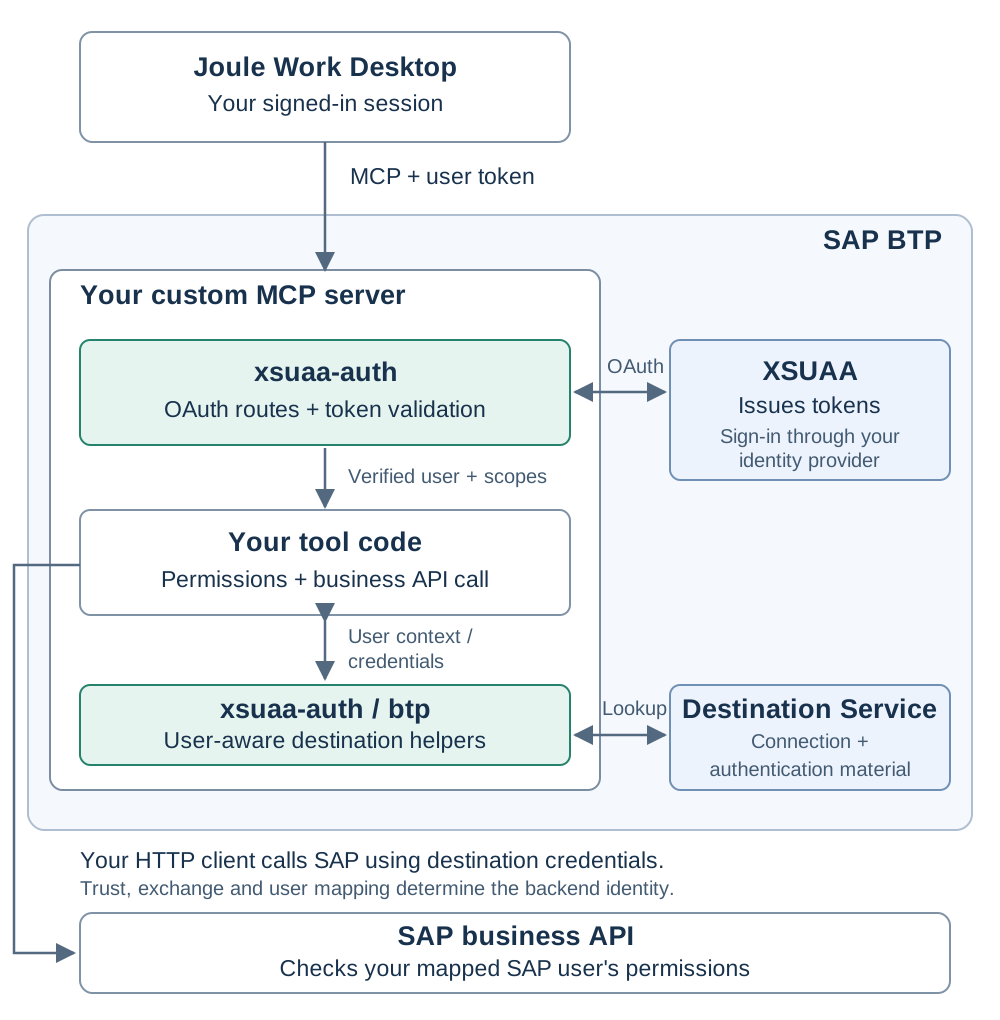
Simplified authentication and connectivity view. Green boxes are library code; blue boxes are BTP services. OAuth browser redirects and the on-premise network path are omitted.
After browser sign-in, JWD sends authenticated requests to the MCP server. XSUAA issues the token; xsuaa-auth validates it. Configured to require a user, the server checks that user’s context and the permission needed for the tool.
A destination is the centrally configured connection to a target system, including its authentication method. The library’s BTP helpers resolve it using the verified user’s context and return authentication material. Your application’s HTTP client applies those credentials and calls SAP.
The configured exchange, trust, and user mapping determine the effective backend user. On-premise connections can also require Connectivity Service and Cloud Connector, omitted from the diagram. Principal propagation preserves the user’s identity through a supported flow; it does not mean forwarding the incoming MCP token unchanged to every backend.
Two permission checks matter: the MCP server decides whether you may use the tool, and SAP decides whether your mapped user may read the business data. If you can read a business partner but a colleague cannot, the connector should preserve that difference. A successful login must not route both users through a shared account with broader permissions.
For users, the experience is browser sign-in followed by a permitted result or a clear access-denied response. No SAP password belongs in the conversation.
Why I built xsuaa-auth
I extracted xsuaa-auth from ARC-1’s authentication stack so developers could reuse OAuth sign-in, token validation, and user-context handling across MCP servers.
The package supports Node.js servers using Express and the TypeScript MCP SDK. Its documentation covers the authentication APIs and separate BTP destination helpers. Your application still supplies the MCP transport, business tools, permission checks, HTTP client, and request limits.
The authentication layer also works for tools that expose internal knowledge, document lookups, or non-SAP APIs. XSUAA governs access to the MCP service; each downstream application applies its own authentication and permissions. Preserving the individual user all the way to that application requires a supported identity flow there too.
MCP servers already using xsuaa-auth
These public projects declare xsuaa-auth as a dependency and integrate it into their server code:
| MCP server | What it helps with | Where xsuaa-auth is used |
|---|---|---|
| ARC-1 | ABAP development and investigation | OAuth and token validation, alongside BTP connectivity helpers |
| BW Modeling MCP | SAP BW/4HANA modeling and analysis | HTTP authentication and destination-based connections, with principal propagation as a configured option |
| calmcp | SAP Cloud ALM projects, tasks, and analytics | Authentication for its remote HTTP transport through the library’s setup function |
| LISA | Reading and maintaining SAP object translations | OAuth and token verification in its standalone server, plus BTP destination helpers |
| ROSA | Finding released SAP objects and alternatives for ABAP Cloud | Optional XSUAA/OIDC authentication for its hosted service |
That is the reuse I wanted: different tools, with a shared authentication foundation. I checked these integrations on 21 October 2026. Deployment options and downstream identities differ: package adoption alone does not establish per-user backend access or verified JWD compatibility.
Central administration on BTP, individual access for users
A shared MCP server lets administrators manage deployment, destinations, and application access centrally. Users connect with their own identity without operating a server or configuring backend credentials themselves.
Developers define application permissions, such as access to a read-only lookup. Administrators group them into BTP role collections and assign them to users or identity-provider groups. The server enforces the corresponding scopes. SAP explains role-collection assignment.
For example, a customer-service group could receive access to the business-partner tool. Knowing its URL would not grant access: callers still need the application permission and the appropriate SAP authorization.
JWD’s Admin-Managed connectors let organizations provide the connection centrally; see its connector guide. BTP governs service access. JWD and your organization’s client policies govern which connectors users may add or use. xsuaa-auth supplies server authentication, not desktop-wide connector restrictions.
Which SAP systems can be connected
The API and identity setup depend on the target:
| SAP landscape | What your team needs to establish |
|---|---|
| ECC | A suitable API for the release, plus the connection and user mapping, often through Cloud Connector |
| S/4HANA on-premise or Private Edition | The business API and, for the Cloud Connector route, principal propagation and backend trust |
| SAP BTP applications and ABAP environment | The authentication exchange supported by the target, its trust configuration, and the user’s roles |
| S/4HANA Cloud Public Edition | An API and communication scenario that support the intended business-user access |
SAP’s Business Partner A2X API is a starting point for this example on a suitable S/4HANA system, not a universal recipe for every landscape.
Choose an API that answers the business question and supports the intended user’s access before implementing the connector.
A starting point for developers
Start with one tool, one destination, and two test users. Prove an allowed read and a denied read before expanding:
- Expose a real MCP endpoint. Use the MCP SDK’s Streamable HTTP transport for the remote server. The library’s Express example demonstrates authentication with a JSON stub; it is not a complete JWD connector.
- Require a user and the tool’s permission. Compose
createXsuaaTokenVerifierwithrequireUserToken: trueand require your local scope through bearer middleware. In the reviewed version,setupHttpAuthdoes not expose that user-only option. See the verified-user documentation. - Resolve the destination with the verified user’s token.
lookupDestinationWithUserTokensupplies authentication material for the connection. Your HTTP client applies it and makes the SAP request. Keep credentials and cached results separated by tenant, user, and target. See the destination documentation. - Put limits around the work. Enforce a per-user allowance, a shared budget for actual API requests, bounded concurrency, and timeouts. These controls belong to your application or its managed infrastructure.
- Test the entire path. Verify JWD sign-in, the effective SAP user, denied access, concurrent users, and throttling across multiple server instances. Record the exact package, SDK, desktop, and backend versions.
For the two-user test, inspect the effective SAP user in backend evidence and compare the returned data. A successful browser login proves only the first part of the connection; it does not prove that the backend received the intended identity.
For developers and coding agents, keep the contract explicit: one identifier in, documented fields out, and defined behavior for denied access or backend failure.
Connect it to JWD with OAuth
My earlier post, How to Connect Joule Work Desktop to SAP Systems, walks through connector setup and browser OAuth sign-in using ARC-1. A custom server built with xsuaa-auth follows the same kind of connection experience.
Use your organization’s provided connector, or open Extensions → New → Add Connector, enter the deployed URL, and choose the OAuth option specified by your administrator. Sign in with your work account, then select the connector in a conversation. SAP’s connector guide covers the options.
Start with a recurring task that sends you from a spreadsheet into SAP. A focused tool can bring that information into JWD, with the service and access managed centrally.
Implementation status: this is a proposed connector design; the complete business example and live JWD-to-SAP validation remain pending. SAP’s desktop help carries an Early Adopter Care notice as of 21 October 2026. Availability depends on your organization.